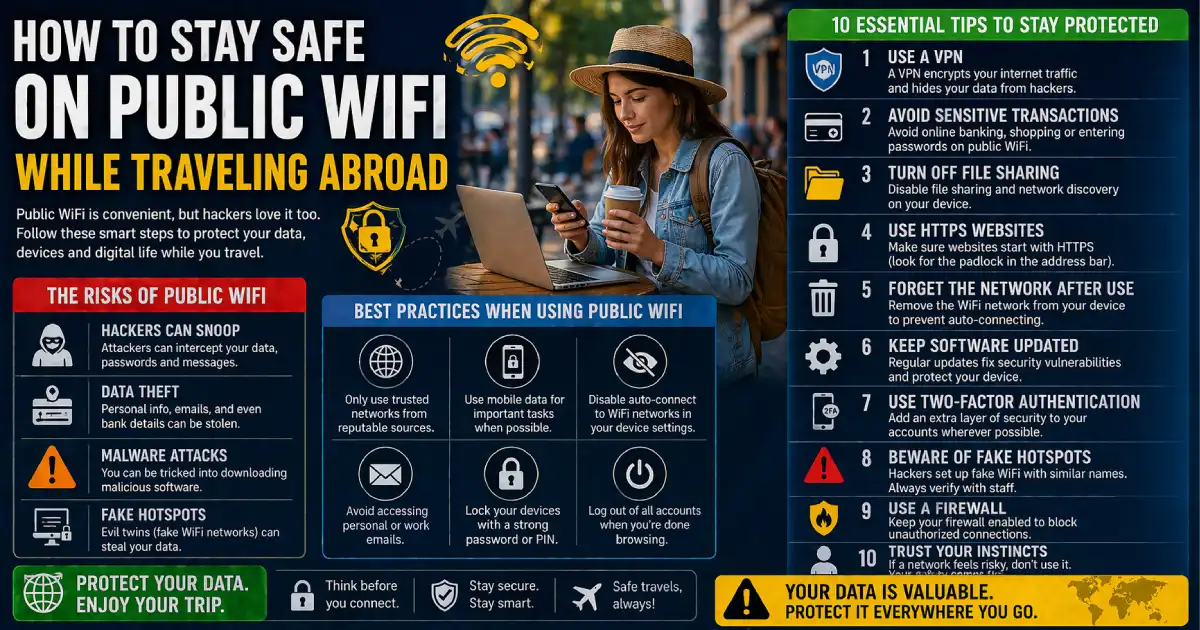
How to Stay Safe on Public WiFi While Traveling Abroad

How to Stay Safe on Public WiFi While Traveling Abroad

Complete Guide to Stay Safe on Public WiFi While Traveling Abroad (2026)

Introduction

Picture this: You’ve just landed at Barcelona’s El Prat Airport after a 10-hour flight. You’re exhausted, jetlagged, and desperate to message your family that you’ve arrived safely. You spot “Free_Airport_WiFi” in your network list and connect immediately. Within seconds, you’re logged into your email, checking your bank account, and scrolling through social media.

What you don’t see: The cybercriminal sitting three rows away who just intercepted your login credentials, accessed your banking information, and now has everything they need to drain your accounts.

This isn’t a scare tactic—this is the reality of public WiFi security in 2026. I’ve spent years researching cybersecurity incidents involving travelers, and here’s what most people don’t realize: that free airport WiFi you’re using without a second thought represents one of the biggest security risks in modern travel.

According to cybersecurity research, over 43% of travelers have connected to public WiFi without any protection, and 70% of tablet users admitted they don’t take basic security precautions when using public networks. The consequences? Identity theft, financial fraud, stolen personal photos, compromised email accounts, and even blackmail using information harvested from unsecured connections.

But here’s the thing—you don’t need to avoid public WiFi entirely. You just need to understand the risks and implement the right protective measures. This comprehensive guide walks you through everything you need to know about staying safe on public WiFi while traveling abroad: what threats exist, which security tools actually work, step-by-step protection strategies, and the specific scenarios where you’re most vulnerable.

Whether you’re a digital nomad working from Bali cafés, a business traveler checking emails at airport lounges, or a tourist uploading vacation photos from your Rome hotel, understanding public WiFi security isn’t optional anymore—it’s essential.

Let’s ensure your next international adventure doesn’t end with identity theft or compromised accounts.


Why Public WiFi is Dangerous for Travelers

The Fundamental Security Problem

Public WiFi networks are inherently insecure by design. Unlike your home network protected by a password and firewall, public networks prioritize accessibility over security. Here’s why that creates problems:

Open Access = Open Vulnerability Public WiFi networks typically operate without encryption or with weak encryption that’s easily bypassed. When you connect to these networks, your data travels through the air in a format that can be intercepted and read by anyone with basic hacking tools.

Think of it like this: Your home WiFi is like sending a letter in a locked safe. Public WiFi is like shouting your personal information across a crowded room and hoping only the intended recipient hears it.

Shared Network = Shared Risk Everyone connected to the same public network can potentially “see” your device. In your home, you know who’s on your network (your family, your devices). At a café, airport, or hotel, you’re sharing digital space with complete strangers—including potential cybercriminals specifically targeting travelers.

No Control Over Network Security You have zero control over how the network is configured, who administers it, or what security measures (if any) are in place. The café owner might have set it up five years ago with default passwords still active. The hotel might use outdated encryption. The airport might have no idea their network was compromised weeks ago.

Why Travelers Are Specifically Targeted

Cybercriminals view travelers as premium targets for several strategic reasons:

Higher-Value Targets Business travelers often access corporate systems, financial accounts, and sensitive communications. Tourists carry multiple credit cards and access banking apps to manage trip expenses. Both groups represent potentially lucrative targets compared to random local café visitors.

Distraction and Urgency Travelers are distracted—navigating unfamiliar cities, managing tight schedules, dealing with language barriers, fighting jetlag. This cognitive load makes them less likely to notice security red flags or question suspicious WiFi networks. The urgency to quickly check flight details, confirm hotel reservations, or contact family creates pressure that overrides security caution.

Temporary Location Advantage Criminals targeting travelers benefit from victims leaving the country before discovering the fraud. By the time you realize your accounts were compromised in Paris, you’re back home in Australia, making investigation and prosecution extremely difficult.

Predictable Patterns Travelers follow predictable patterns: connecting at airports, checking in at hotels, working from cafés near tourist attractions. Cybercriminals position themselves at these high-traffic locations knowing victims will appear regularly.

Real Statistics That Should Concern You

Let me share some numbers that put this risk in perspective:

WiFi Security Incidents:

  • 43% of travelers have connected to public WiFi without any security protection
  • 70% of tablet users don’t use VPNs or other protection on public networks
  • 81% of data breaches involve weak or stolen credentials, many harvested from public WiFi
  • 35% of travelers have experienced some form of cybersecurity incident while abroad

Financial Impact:

  • Average cost of identity theft: $1,343 per victim (US data, 2025)
  • Time to resolve identity theft: 100-200 hours average
  • Credit card fraud from public WiFi: $500-$5,000 average theft before detection

Common Compromises:

  • Email account takeovers: 28% of public WiFi incidents
  • Social media account theft: 22%
  • Banking credential theft: 31%
  • Corporate data breaches: 19%

These aren’t hypothetical scenarios—these are documented incidents affecting real travelers every single day.

The Hotel WiFi Misconception

Here’s a dangerous assumption many travelers make: “Hotel WiFi is safe because I got a password.”

The Reality: That password you received at check-in? It’s usually the same password given to every guest for weeks or months. It provides minimal security because:

  • Hundreds of people know the same password
  • Hotel networks are rarely segmented (everyone shares the same network)
  • Hotel staff often use weak administrative passwords
  • Hotel networks are prime targets for hackers who know business travelers access them

A password for network access doesn’t equal encryption or security. It just means not everyone in the parking lot can connect—only everyone who’s stayed at that hotel recently.


Common Public WiFi Threats Every Traveler Should Know

Man-in-the-Middle (MITM) Attacks

What It Is: Imagine you’re having a conversation with your bank, but someone invisible is standing between you and the teller, listening to everything and potentially altering messages. That’s a man-in-the-middle attack.

How It Happens on Public WiFi: A hacker positions themselves between your device and the internet connection you’re trying to reach. Everything you send or receive passes through their system first. They can:

  • Read your emails, messages, and browsing activity
  • Steal login credentials as you type them
  • Capture credit card numbers during online shopping
  • Modify the information you’re viewing (fake banking pages, altered emails)

Real-World Example: You’re at a Rome café checking your bank account. A cybercriminal on the same network intercepts your connection. When you type your banking login, they capture it. When the bank sends you your balance, they see it. You have no idea this is happening—the connection appears normal.

How Common Is This: MITM attacks are surprisingly easy to execute. Free software tools available online allow even amateur hackers to intercept public WiFi traffic. At busy tourist locations (airports, train stations, popular cafés), the probability of someone actively attempting MITM attacks can exceed 10%.

Rogue Hotspots (Evil Twin Attacks)

What It Is: A fake WiFi network that looks legitimate, created specifically to steal information from anyone who connects.

How It Works: A hacker creates a WiFi network with a legitimate-sounding name:

  • “Starbucks_Free_WiFi”
  • “Airport_Guest_Network”
  • “Hotel_Lobby_WiFi”

These networks often appear stronger than the legitimate network because the hacker’s equipment is physically closer to you. When you connect, everything you do flows directly through their system.

The Perfect Setup:

  1. Hacker sits in busy airport with laptop
  2. Creates fake network called “Airport_Free_WiFi_5G”
  3. Travelers see it, assume it’s legitimate
  4. 20-30 people connect in an hour
  5. Hacker captures login credentials, emails, banking info from all of them

How to Spot Them: Unfortunately, rogue hotspots are almost impossible to distinguish from legitimate ones. The network name looks right. The connection works normally. This is why verification (which we’ll cover in best practices) is crucial.

Real Incident: At Los Angeles International Airport in 2024, security researchers discovered multiple rogue hotspots operating during peak travel hours. One fake “LAX_Free_WiFi” network had accumulated over 200 connections before being identified and shut down.

Packet Sniffing

What It Is: “Sniffing” the data packets (small chunks of information) traveling across a network to steal sensitive information.

How It Works: Every time you do anything online—send an email, load a webpage, check social media—your device sends and receives tiny packets of data. On unsecured public WiFi, these packets travel “in the clear,” meaning anyone with packet sniffing software can capture and read them.

What Hackers Can See:

  • Websites you visit
  • Emails you send and receive
  • Messages in chat applications
  • Login credentials for unsecured websites
  • File transfers
  • Any information not encrypted

The Tools: Packet sniffing software is free, legal (for network administrators), and requires minimal technical knowledge. Tools like Wireshark can capture everything happening on a public network within minutes.

Malware Distribution

What It Is: Hackers using compromised WiFi networks to infect devices with malicious software.

How It Happens: When you connect to a compromised network, hackers can:

  • Inject malware through unsecured file-sharing settings
  • Exploit outdated software on your device
  • Trigger fake “system update” notifications that install malware
  • Compromise downloads (replacing legitimate files with infected versions)

Types of Malware Targeting Travelers:

  • Keyloggers: Record every keystroke, capturing passwords and messages
  • Spyware: Monitor your activities and steal information
  • Ransomware: Encrypt your files and demand payment
  • Banking trojans: Specifically target financial applications

The Silent Infection: Many malware infections show no immediate symptoms. You connect to WiFi at a Paris café, unknowingly get infected, and the malware sits dormant. Weeks later, back home, it activates and starts stealing banking credentials or personal data.

Session Hijacking

What It Is: Stealing your active login session to access accounts without needing your password.

How It Works: When you log into a website, the site creates a “session cookie”—a temporary file that remembers you’re logged in. On public WiFi, hackers can steal these session cookies and use them to access your accounts as if they were you.

Why It’s Dangerous:

  • No password needed—the cookie bypasses authentication
  • Works even if you have strong passwords
  • Can happen while you’re still logged in (you don’t notice)
  • Affects email, social media, shopping sites, cloud storage

Real Example: You log into Facebook at an airport. A hacker steals your session cookie. They can now post as you, read your messages, and access your account without ever knowing your password. By the time you’re on your flight, they’ve already changed settings to maintain access even after you log out.

WiFi Eavesdropping

What It Is: Passive monitoring of network traffic to gather information without actively interfering.

How It Differs from Other Attacks: Unlike MITM attacks or packet sniffing that require active tools, WiFi eavesdropping can be as simple as listening to network traffic. If a website doesn’t use HTTPS encryption, everything you do on that site is visible to anyone monitoring the network.

What Gets Compromised:

  • Search queries
  • Forum posts
  • Comments on websites
  • Information filled into forms
  • Any activity on non-HTTPS websites

The Scale: At a busy café with 50 connected devices, an eavesdropper can monitor dozens of people simultaneously, gathering usernames, email addresses, browsing habits, and personal information from anyone visiting unencrypted sites.


Real-World Travel Scenarios: Where You’re Most Vulnerable

Scenario 1: The Airport Layover

The Situation: You have a 4-hour layover at Amsterdam Schiphol Airport. You need to work, check emails, and maybe shop online for a gift. You connect to “Schiphol_Free_WiFi” and start working.

The Risks:

  • Airports are cybercriminal hotspots (high traffic, distracted travelers)
  • Multiple rogue networks mimicking airport WiFi
  • Business travelers accessing corporate systems
  • Financial transactions during online shopping
  • Rushed connections (late to gate, urgency overrides caution)

What Commonly Gets Compromised:

  • Corporate email access
  • VPN credentials for work systems
  • Credit card information during airport shopping
  • Flight booking confirmations containing passport numbers

How to Stay Safe:

  • Verify the official WiFi network name with airport staff or signage
  • Use VPN before accessing any work or financial systems
  • Avoid online shopping entirely or use mobile data
  • Enable two-factor authentication for all accounts
  • Monitor credit card statements closely after travel

Scenario 2: The Digital Nomad Café

The Situation: You’re working remotely from a Bali café for three weeks. You’ve become a regular, the WiFi password hasn’t changed, and you spend 6-8 hours daily connected to “BeachCafe_Guest.”

The Risks:

  • Extended exposure time (more hours = more opportunities for compromise)
  • Repeatedly using the same network (predictable pattern)
  • Accessing sensitive work files and communications
  • Financial transactions (paying invoices, managing business accounts)
  • False sense of security from familiarity

What Commonly Gets Compromised:

  • Cloud storage access (Google Drive, Dropbox with client files)
  • Payment processor accounts (PayPal, Stripe)
  • Client communications revealing project details
  • Banking credentials for business accounts

The Long-Game Attack: Hackers targeting digital nomad hotspots don’t always attack immediately. They monitor for weeks, identify high-value targets (freelancers managing significant accounts), and then strike strategically when the most sensitive information is being accessed.

How to Stay Safe:

  • Use VPN 100% of the time when working
  • Consider dedicated mobile hotspot for critical work
  • Avoid accessing most sensitive accounts on café WiFi
  • Separate work and personal browsing
  • Use password manager with strong, unique passwords

Scenario 3: The Hotel Business Traveler

The Situation: You’re staying at a business hotel in Tokyo for a conference. You receive the WiFi password at check-in and spend evenings in your room accessing your company’s systems, reviewing presentations, and sending confidential emails.

The Risks:

  • Hotel networks are rarely segmented (you share network with hundreds)
  • Business travelers are high-value targets
  • Same password used for weeks/months
  • Corporate data accessible
  • Extended stay creates multiple exposure windows

What Commonly Gets Compromised:

  • Corporate VPN credentials
  • Confidential business communications
  • Client data in emails or cloud storage
  • Presentation materials containing proprietary information
  • Access to corporate databases and systems

The Targeted Attack: Industrial espionage is real. Competitors or foreign intelligence services sometimes target specific hotels known to host business conferences, knowing executives will be accessing valuable information on hotel WiFi.

How to Stay Safe:

  • Always use corporate VPN for any work access
  • Consider using mobile hotspot for most sensitive work
  • Never access the most confidential systems on hotel WiFi
  • Use two-factor authentication for all corporate systems
  • Verify you’re on legitimate hotel network (ask at desk)

Scenario 4: The Tourist Photo Upload

The Situation: You’re traveling through Europe, taking hundreds of photos. Each evening at your hostel, you connect to WiFi and upload photos to Facebook, Instagram, and Google Photos while messaging friends about your adventures.

The Risks:

  • Hostel WiFi is shared among dozens of travelers
  • Social media accounts often have weak security
  • Photos contain location metadata and personal information
  • Messaging apps might not be encrypted
  • Email access while managing booking confirmations

What Commonly Gets Compromised:

  • Social media account credentials
  • Email access (leading to password resets for other accounts)
  • Cloud photo storage containing personal/sensitive images
  • Messaging account takeovers
  • Location tracking from photo metadata

The Identity Theft Path: Criminals gaining access to your social media and email can:

  1. Learn your full name, birthday, email address
  2. See your location and travel plans
  3. Access password reset options for banking
  4. Impersonate you to friends and family
  5. Build complete identity profile for fraud

How to Stay Safe:

  • Use VPN when uploading photos or accessing accounts
  • Enable two-factor authentication on all social media
  • Strip location metadata from photos before uploading
  • Use messaging apps with end-to-end encryption (Signal, WhatsApp)
  • Create strong, unique passwords for each service

Scenario 5: The Train Station Quick Check

The Situation: You have 15 minutes before your train from Paris to Brussels. You quickly connect to “Gare_du_Nord_WiFi” to check your hotel booking confirmation and send a quick message home.

The Risks:

  • Time pressure reduces security awareness
  • Train station WiFi often has multiple rogue networks
  • High-traffic location attracts cybercriminals
  • “Quick check” often involves logging into accounts
  • Rushed connections mean skipping verification

What Commonly Gets Compromised:

  • Email access for booking confirmations
  • Messaging app credentials
  • Social media accounts from quick updates
  • Travel booking accounts (hotels, trains, rentals)

The 15-Minute Nightmare: In just 15 minutes, a hacker can capture login credentials, access your email, see your travel bookings, and potentially lock you out of accounts before you even board the train. By the time you notice (hours or days later), they’ve already done significant damage.

How to Stay Safe:

  • Use mobile data for quick checks, not public WiFi
  • If WiFi necessary, use VPN first
  • Avoid logging into accounts—just view cached information
  • Wait until you’re somewhere secure for actual account access
  • Have offline copies of critical confirmations

Essential Security Tools for Travelers

VPN (Virtual Private Network) – Your Primary Defense

What a VPN Actually Does:

Think of a VPN as a secure, encrypted tunnel between your device and the internet. When you use a VPN on public WiFi:

  1. All your internet traffic gets encrypted before leaving your device
  2. The encrypted data travels through a secure tunnel to the VPN server
  3. The VPN server sends your requests to websites on your behalf
  4. Responses come back through the same encrypted tunnel

Why This Protects You:

Even if someone intercepts your WiFi connection, all they see is encrypted gibberish. They can’t:

  • See which websites you’re visiting
  • Read your emails or messages
  • Capture login credentials
  • Monitor your browsing activity
  • Steal session cookies or personal data

Choosing a VPN for Travel:

Not all VPNs are created equal. Here’s what matters for travelers:

Essential Features:

  • Strong encryption: AES-256 bit encryption minimum
  • No-logs policy: VPN provider doesn’t store your activity data
  • Kill switch: Automatically disconnects internet if VPN fails
  • Multi-device support: Protect phone, laptop, tablet simultaneously
  • Good server coverage: Servers in multiple countries
  • Fast connection speeds: Won’t slow you down significantly

Red Flags to Avoid:

  • Free VPNs (they often sell your data or inject ads)
  • VPNs based in countries with invasive surveillance laws
  • Providers with history of data breaches
  • Services requiring excessive personal information

Recommended Approach:

For comprehensive protection across all your devices, consider using reliable VeePN VPN apps that offer multi-platform support, allowing you to secure your smartphone, laptop, and tablet simultaneously. Whether you’re connecting from an airport terminal in Singapore, a café in Paris, or your hotel room in New York, having a trusted VPN application installed on each device ensures consistent protection regardless of which device you’re using to access public networks.

VPN Best Practices:

  • Install and test VPN before leaving home
  • Connect to VPN BEFORE joining public WiFi
  • Verify VPN is active (check for VPN icon in status bar)
  • Choose nearby VPN server for better speeds
  • Keep VPN software updated

What VPNs DON’T Protect Against:

  • Malware already on your device
  • Phishing emails or fake websites you willingly visit
  • Social engineering attacks
  • Physical device theft
  • Compromised passwords you’ve already used

Two-Factor Authentication (2FA)

What It Is: A second verification step beyond your password. Even if someone steals your password, they can’t access your account without the second factor.

Types of 2FA:

SMS Codes (Better Than Nothing):

  • Code sent to your phone number
  • Easy to set up
  • Vulnerable to SIM swapping attacks
  • Requires cell service

Authenticator Apps (Recommended):

  • Google Authenticator, Authy, Microsoft Authenticator
  • Generates time-based codes on your device
  • Works offline (no cell service needed)
  • More secure than SMS

Hardware Keys (Most Secure):

  • Physical USB or NFC device (YubiKey, Titan Security Key)
  • Highest security level
  • Can’t be intercepted or phished
  • Costs $25-50 per key

Critical Accounts Requiring 2FA:

  • Email (this is the master key to everything else)
  • Banking and financial accounts
  • Cloud storage (Google Drive, Dropbox, iCloud)
  • Social media accounts
  • Work/corporate accounts
  • Password manager

Setup Before Travel: Enable 2FA on all critical accounts before your trip. During travel is the worst time to realize you can’t access an account because you haven’t set up 2FA and the verification email won’t come through on sketchy WiFi.

HTTPS Everywhere

What It Is: A browser extension that forces websites to use encrypted HTTPS connections instead of unencrypted HTTP.

Why It Matters: Many websites support HTTPS but don’t force it. HTTP sends everything unencrypted—visible to anyone on the network. HTTPS encrypts data between your browser and the website.

Visual Indicator: Look for the padlock icon in your browser’s address bar. No padlock = no encryption = don’t enter sensitive information.

Installation:

  • Available for Chrome, Firefox, Edge, Safari
  • Free from EFF (Electronic Frontier Foundation)
  • Works automatically once installed
  • Forces HTTPS when available

Limitations:

  • Doesn’t protect against all attacks
  • Some websites don’t support HTTPS
  • Doesn’t replace need for VPN
  • Complements VPN, doesn’t substitute it

Password Manager

Why You Need One: Using the same password across sites means one breach compromises everything. Strong, unique passwords for each site are essential but impossible to remember. Password managers solve this.

How It Works:

  • Stores all passwords encrypted
  • Generates strong random passwords
  • Autofills login forms
  • Syncs across devices
  • Requires one master password

Recommended Options:

  • 1Password: Excellent features, travel mode
  • Bitwarden: Open-source, affordable
  • LastPass: User-friendly, free tier available
  • Dashlane: Strong security, VPN included

Travel Mode Feature: Some password managers (like 1Password) have “travel mode” that temporarily removes sensitive data from your devices while crossing borders, then restores it after.

Setup Priority: Configure your password manager before travel. Generate and save strong passwords for all important accounts. This way, even if someone sees you type your master password, they still can’t access individual accounts without breaking your encryption.

Antivirus and Anti-Malware

Why It’s Still Necessary: VPNs protect data in transit. Antivirus protects against malware infections from compromised networks or downloads.

Essential Features:

  • Real-time scanning
  • Web protection (blocks malicious sites)
  • Ransomware protection
  • Firewall
  • Regular updates

Recommended for Travelers:

  • Malwarebytes: Excellent malware detection
  • Bitdefender: Comprehensive, low system impact
  • Norton 360: Includes VPN and password manager
  • Kaspersky: Strong protection, good for Windows

Mobile Protection: Don’t forget phones and tablets:

  • iOS: Built-in protections are good, but consider additional layers
  • Android: More vulnerable, antivirus strongly recommended

Firewall Configuration

What a Firewall Does: Controls incoming and outgoing network traffic, blocking unauthorized access attempts.

For Travelers:

  • Enable built-in OS firewall (Windows, macOS)
  • Set to “Block all incoming connections” on public WiFi
  • Allow specific apps only as needed
  • Disable file sharing and network discovery

Mobile Devices:

  • iOS: Automatically protected
  • Android: Enable if available in settings
  • Consider third-party firewall apps for Android

Best Practices for Public WiFi Safety

Before Connecting to Any Public Network

Verify Network Legitimacy:

  • Ask staff for exact network name (spelling matters)
  • Check official signage for WiFi instructions
  • Beware of misspellings or extra characters (Starbucks vs Starrbucks)
  • Look for networks requiring agreement acceptance
  • Avoid “Free WiFi” or generic unnamed networks

Disable Auto-Connect: Your devices try to be helpful by auto-connecting to known networks. This creates vulnerability—you might connect to “Hotel_Guest” at any hotel, including fake ones.

How to Disable:

  • iPhone: Settings → WiFi → Auto-Join → Ask to Join Networks
  • Android: Settings → WiFi → WiFi preferences → Turn off Auto-connect
  • Windows: Network settings → Manage known networks → Uncheck automatic
  • macOS: System Preferences → Network → WiFi → Advanced → Uncheck auto-join

Turn Off Sharing Features:

  • File sharing
  • Printer sharing
  • Network discovery
  • AirDrop (set to Contacts Only or Receiving Off)
  • Bluetooth (unless actively using)

Enable VPN First: Connect to VPN BEFORE joining public WiFi, not after. This ensures even the initial connection is protected.

During Your Connection

HTTPS-Only Browsing:

  • Verify padlock icon before entering information
  • Never enter passwords on HTTP sites
  • Use browser warnings seriously
  • Install HTTPS Everywhere extension

Avoid Sensitive Activities:

  • Banking transactions → Use mobile data instead
  • Password changes → Wait for secure connection
  • Large file transfers with sensitive data → Use alternative method
  • Accessing most confidential work documents → Mobile hotspot

Monitor Your Connection:

  • Check VPN is active (icon in status bar)
  • Verify you’re on the intended network (settings may show)
  • Watch for unexpected disconnections
  • Note unusual behavior (slow speeds might indicate MITM attack)

Use Private/Incognito Mode: Doesn’t provide security from network attacks, but:

  • Doesn’t save browsing history
  • Clears cookies after session
  • Prevents some tracking
  • Useful for shared devices

After Disconnecting

Clear Browsing Data:

  • Cookies and site data
  • Cached images and files
  • Download history
  • Saved form data

Check Account Activity: Within 24-48 hours, review:

  • Email login activity (most providers show recent IPs)
  • Banking transactions
  • Social media login locations
  • Credit card charges

Change Passwords If Suspicious: If you notice anything unusual:

  • Change passwords from secure connection
  • Enable 2FA if not already active
  • Log out of all sessions
  • Monitor accounts closely for days

Forget the Network: Remove the public network from your saved networks:

  • Prevents automatic reconnection
  • Eliminates network from your device history
  • Reduces future risk if network was compromised

General Security Hygiene

Keep Software Updated:

  • Operating system updates (often include security patches)
  • Browser updates
  • VPN and security software
  • App updates (especially banking and communication apps)

Use Strong, Unique Passwords:

  • Minimum 12 characters
  • Mix of uppercase, lowercase, numbers, symbols
  • Different password for each account
  • Password manager to manage them all

Enable Device Encryption:

  • Windows: BitLocker (Pro/Enterprise editions)
  • macOS: FileVault
  • iOS: Enabled by default with passcode
  • Android: Settings → Security → Encryption

Regular Backups: Before extended travel:

  • Backup important files to encrypted cloud storage
  • Create local backup on encrypted external drive
  • Test that backups actually restore properly

Airport and Hotel WiFi: Special Considerations

Airport WiFi Security

Unique Airport Risks:

High Cybercriminal Activity: Airports represent premium hunting grounds:

  • Thousands of travelers daily
  • Time pressure (rushing to gates)
  • Business travelers accessing corporate systems
  • International travelers less familiar with local threats

Multiple Rogue Networks: At major airports, security researchers regularly find 5-10 rogue hotspots operating simultaneously, with names like:

  • “Airport_Free_WiFi”
  • “Terminal_Guest_Network”
  • “[Airport Code]_Public”

Verification Challenges: Many airports have confusing WiFi setups:

  • Multiple legitimate networks (Terminal 1, Terminal 2, paid tier, free tier)
  • Networks that require app downloads
  • Inconsistent naming across terminals

Airport WiFi Best Practices:

Before Connecting:

  • Verify official network name with airport staff or official signage
  • Look for WiFi instructions on airport website before traveling
  • Note that official networks usually require agreement acceptance
  • Be suspicious of networks that connect instantly without any prompt

Connection Strategy:

  • Use for basic browsing only (flight status, general information)
  • Connect VPN before accessing anything sensitive
  • Use mobile data for banking, work access, or important communications
  • Consider purchasing airport lounge access (WiFi often more secure)

Time-Saving Approach: Download content before arriving:

  • Offline maps
  • Downloaded movies/music
  • Work files needed for flight
  • Travel confirmations saved as PDFs

Alternative: Airport Lounge WiFi: Business lounges (Priority Pass, airline lounges) typically offer:

  • Lower user volume
  • Better security monitoring
  • More reliable connections
  • Worth the cost for security-conscious travelers

Hotel WiFi Security

Why Hotel WiFi Is Tricky:

Shared Password Problem: That password provided at check-in?

  • Same password for weeks/months
  • Hundreds of current and former guests know it
  • Provides minimal security (just network access)
  • Often written on cards left in rooms (anyone can photograph)

Network Segmentation Issues: Most hotels don’t segment their networks, meaning:

  • Every guest shares the same network space
  • Can potentially see other devices
  • One compromised device affects everyone
  • Business conference attendees share with leisure travelers

Targeted Attacks: Hotels hosting business conferences become targets:

  • Industrial espionage
  • Corporate intelligence gathering
  • Foreign state actors targeting specific individuals
  • Criminals knowing high-value targets will be present

Hotel WiFi Best Practices:

Verify Network:

  • Ask front desk for exact network name
  • Get written instructions if available
  • Confirm there’s only one official network
  • Report suspicious networks to hotel security

Segmentation Check: Some hotels offer business floors with separate networks:

  • Inquire about business-class WiFi
  • May cost extra but provides better security
  • Usually includes network segmentation
  • Sometimes includes VPN access

In-Room Safety:

  • Connect VPN immediately upon joining network
  • Disable file sharing completely
  • Use strong passwords for device login
  • Consider mobile hotspot for most sensitive work

Ethernet Alternative: Many hotels still offer wired ethernet:

  • More secure than WiFi (requires physical access)
  • Faster speeds
  • Less shared than WiFi
  • Bring ethernet cable (hotels rarely provide)
  • Still use VPN even on ethernet

Conference WiFi: Hotels often provide separate conference WiFi:

  • Usually more secure than general guest WiFi
  • Still requires VPN for sensitive access
  • Ask organizers about security measures
  • Consider mobile hotspot for critical presentations

Business Center Computers

Extreme Risk: Hotel business centers have public computers that should be considered completely compromised:

  • Hundreds of people use them
  • Often no security software
  • Keyloggers commonly installed
  • Never use for anything sensitive

If You Must Use:

  • Only for printing pre-saved documents
  • Never log into email, banking, or social media
  • Clear all history before leaving
  • Assume everything you type is recorded

Café and Restaurant WiFi Safety

The Café Cybersecurity Challenge

Why Cafés Are Risky:

Extended Exposure: Unlike airports where you connect briefly, café WiFi involves:

  • Hours-long connections (digital nomads working all day)
  • Repeated visits to same locations
  • Predictable patterns (same café, same time)
  • Extended access to corporate systems

Varied Security Levels:

  • Large chains: Better security, professional setup
  • Independent cafés: Often no security awareness
  • Tourist area cafés: Actively targeted by criminals

Social Engineering: Friendly atmosphere creates security complacency:

  • You become regulars, feel safe
  • Staff knows you, seems trustworthy
  • Other patrons become familiar faces
  • False sense of security develops

Café-Specific Best Practices

Network Verification:

  • Ask barista for exact WiFi name and password
  • Be suspicious of multiple networks with similar names
  • Notice if network name changes (could indicate compromise)
  • Question networks that don’t require passwords in cafés that usually do

Seating Strategy:

  • Sit with back to wall (prevents shoulder surfing)
  • Position screen away from walking paths
  • Choose seats with limited sightlines to your screen
  • Be aware of who’s nearby when entering passwords

Privacy Screens:

  • Physical screen protectors limit viewing angles
  • Prevents shoulder surfing
  • Costs $20-40 for laptop/tablet
  • Essential for frequent café workers

Regular Café Security: If you work from cafés regularly:

  • Invest in mobile hotspot for primary connection
  • Use café WiFi only for non-sensitive browsing
  • Never save café network passwords (manual entry each time)
  • Rotate between multiple locations
  • Use VPN 100% of the time

Restaurant WiFi Considerations

Lower Risk Profile: Restaurant WiFi generally involves:

  • Shorter connection times
  • Less sensitive activities (checking maps, photos)
  • Lower-value targets (leisure travelers vs business)

Still Requires Caution:

  • Apply same verification procedures
  • Use VPN for any account access
  • Avoid online shopping or banking
  • Quick checks only, not extended sessions

Smart Restaurant WiFi Use:

  • Download menu/reviews before arriving (offline)
  • Use mobile data for payment apps
  • Check directions before connecting to WiFi
  • Upload photos later from hotel/home

Mobile Hotspot: The Secure Alternative

Why Personal Hotspots Are Safer

Fundamental Security Difference: When you create a hotspot from your phone:

  • You control the network completely
  • Only your devices connect (password protected)
  • Uses cellular data network (carrier security)
  • No shared risk with strangers
  • Encrypted connection you control

Cellular Security Advantages:

  • Carrier-grade encryption
  • Authentication required
  • No local network sharing
  • Difficult to intercept
  • Professional network management

Setting Up Mobile Hotspot

iPhone:

  1. Settings → Personal Hotspot
  2. Enable “Allow Others to Join”
  3. Set strong WiFi password (12+ characters)
  4. Connect devices using password
  5. Disable when not in use

Android:

  1. Settings → Network & Internet → Hotspot & Tethering
  2. Enable WiFi Hotspot
  3. Configure network name and password
  4. Set strong password
  5. Connect devices

Optimization Tips:

  • Use 5GHz band when available (faster, more secure)
  • Change default network name (don’t broadcast phone model)
  • Set connection limit to number of devices needed
  • Disable when not actively using

Data Management Strategies

International Data Plans: Before traveling, investigate:

  • Carrier international plans: Often $10-15/day for existing data allowance
  • International SIM cards: Local SIM with data for €20-40/month
  • eSIM services: Digital SIM activation (Airalo, Holafly)
  • Unlimited plans: Some carriers offer international unlimited

Data Conservation:

  • Download content on hotel WiFi (secure connection)
  • Use hotspot for sensitive tasks only
  • Compress data in browser settings
  • Disable auto-updates and background sync
  • Monitor data usage in settings

Cost-Benefit Analysis: Mobile hotspot costs:

  • International plan: $10-15/day
  • Local SIM: €20-40/month
  • eSIM: $20-50 for data packages

Public WiFi risks:

  • Identity theft recovery: 100-200 hours
  • Financial fraud: $500-$5,000 average loss
  • Compromised accounts: Countless hours fixing
  • Stress and vacation disruption: Priceless

The math favors mobile hotspot security for most travelers.

When to Use Mobile Hotspot

Always Use for:

  • Banking and financial transactions
  • Work access to corporate systems
  • Password changes or account management
  • Sending sensitive documents
  • Video calls discussing confidential topics

Public WiFi Acceptable for:

  • General web browsing (through VPN)
  • Checking news and weather
  • Social media scrolling (with 2FA enabled)
  • Downloading already-purchased content
  • Non-sensitive email reading

What to Never Do on Public WiFi

Forbidden Activities (Even With VPN)

Online Banking and Financial Transactions: While VPN provides protection, the risk-reward ratio makes this unwise:

  • Even small VPN failures expose everything
  • Banking apps may not route through VPN properly
  • One mistake (VPN disconnects) = complete exposure
  • Wait until secure connection or use mobile hotspot

Accessing Most Sensitive Work Documents:

  • Confidential client files
  • Proprietary business information
  • Legal documents
  • Medical records
  • Financial projections

Shopping with Credit Cards:

  • Online purchases entering card details
  • Saved payment methods still risky
  • Wait for hotel/home or use mobile hotspot
  • Consider virtual credit cards for online shopping

Password Changes:

  • Never change passwords on public WiFi
  • Especially problematic for master passwords
  • Compromised change = perpetual access for attacker
  • Use secure connection or mobile data

Bad Security Habits to Break

Automatic WiFi Connection:

  • Disable auto-connect to open networks
  • Remove old public networks from saved list
  • Manually verify each connection
  • Never save public network passwords permanently

Ignoring HTTPS Warnings:

  • Red flags mean real danger
  • Certificate errors indicate possible attack
  • Don’t proceed just to “get things done”
  • Close browser and investigate

Using Suspicious Networks:

  • “Free_Public_WiFi” with no business name
  • Networks with typos
  • Unpassworded networks where you expect passwords
  • Networks that connect without any agreement

Same Passwords Across Accounts:

  • Makes every account vulnerable if one is compromised
  • Use password manager to generate unique passwords
  • Especially critical for email (master key to everything)

Skipping Updates:

  • Security patches protect against known vulnerabilities
  • Delay = exposure to preventable attacks
  • Update before travel when on secure home network
  • Enable automatic security updates

Emergency Security Checklist: If You Think You’ve Been Compromised

Immediate Actions (First Hour)

Disconnect Immediately:

  • Turn off WiFi
  • Switch to cellular data or trusted connection
  • Don’t try to “investigate” on the compromised network

Change Critical Passwords: From a secure connection (mobile hotspot or home network):

  1. Email password (highest priority)
  2. Banking passwords
  3. Primary social media
  4. Cloud storage (Google Drive, Dropbox, iCloud)
  5. Work/corporate accounts

Enable 2FA If Not Already Active:

  • Email accounts
  • Banking
  • Social media
  • Any account with sensitive information

Check Recent Login Activity: Most services show recent logins:

  • Gmail: Security → Recent security events
  • Facebook: Settings → Security → Where You’re Logged In
  • Apple ID: Security → Devices
  • Google: Security → Your devices

Look for unfamiliar locations or devices.

Log Out of All Sessions: Most services offer “log out everywhere”:

  • Forces logout from all devices
  • Compromised sessions ended immediately
  • You’ll need to log back in (small price for security)

24-Hour Actions

Monitor Financial Accounts:

  • Check bank transactions
  • Review credit card charges
  • Look for small “test” charges (precursor to larger fraud)
  • Report unauthorized transactions immediately

Change All Passwords:

  • Use secure connection
  • Generate strong, unique passwords for each account
  • Use password manager to organize
  • Prioritize accounts with financial or personal information

Review Account Settings: Check for unauthorized changes:

  • Recovery email addresses
  • Phone numbers for 2FA
  • Connected third-party apps
  • Email forwarding rules
  • Privacy settings

Contact Your Bank:

  • Inform them of potential compromise
  • Request new credit/debit cards if needed
  • Set up transaction alerts
  • Ask about fraud monitoring services

Scan Devices for Malware:

  • Run full antivirus/anti-malware scan
  • Update security software first
  • Check browser extensions for suspicious additions
  • Review installed applications

Week-Long Monitoring

Daily Account Checks:

  • Email (look for password reset requests)
  • Banking (any unusual activity)
  • Credit cards (small transactions can indicate testing)
  • Social media (unauthorized posts or messages)

Set Up Alerts:

  • Banking transaction notifications
  • Email login alerts
  • Credit card purchase alerts
  • Social media login notifications

Review Credit Reports: In the US:

  • AnnualCreditReport.com (free annual reports)
  • Look for new accounts you didn’t open
  • Check for hard inquiries
  • Dispute any unauthorized activity

Document Everything:

  • Screenshot suspicious activity
  • Save emails and communications
  • Note dates, times, and what was accessed
  • Create timeline of events
  • Useful for law enforcement if needed

Long-Term Protection

Consider Credit Freeze:

  • Prevents new accounts being opened in your name
  • Free in many countries
  • Can temporarily lift when needed
  • Strongest identity theft protection

Identity Theft Protection Service:

  • Monitors dark web for your information
  • Alerts to suspicious activity
  • Provides recovery assistance if compromised
  • Costs $10-30/month typically

Legal Considerations:

  • File police report if financial loss occurred
  • Report to national cybercrime authorities
  • Document for insurance claims
  • Consider consulting attorney for serious breaches

Learn and Adapt:

  • Review what happened
  • Identify where security failed
  • Implement better practices
  • Share lessons with other travelers

Frequently Asked Questions

Is it safe to use public WiFi with a VPN?

Yes, using a VPN on public WiFi significantly increases your safety. A VPN encrypts all data between your device and the VPN server, making it unreadable to anyone intercepting your connection on the public network. However, even with a VPN, you should still follow best practices: verify network legitimacy, keep software updated, and avoid the most sensitive activities (like changing passwords or major financial transactions) until you’re on a fully secure connection. VPNs protect data in transit but don’t prevent all risks—malware, phishing, and social engineering attacks can still occur.

Can hackers see what I’m doing on public WiFi?

On unsecured public WiFi without protection, yes—hackers can potentially see significant information about your activities. They can monitor which websites you visit, intercept unencrypted communications, capture login credentials for non-HTTPS sites, and steal session cookies. However, using a VPN eliminates most of this visibility by encrypting your traffic. HTTPS websites (those with the padlock icon) also provide encryption, protecting specific site communications even without a VPN. The combination of VPN + HTTPS gives you strong protection against WiFi eavesdropping.

Should I turn off WiFi when I’m not using it?

Yes, absolutely. Keeping WiFi disabled when not actively using it provides multiple security benefits: prevents automatic connection to rogue networks, reduces exposure to WiFi-based attacks, conserves battery life, and prevents your device from broadcasting information about previously connected networks. Make it a habit to disable WiFi when walking between locations, during flights, and overnight. Enable it only when you actively need connectivity and can verify the network’s legitimacy.

Is hotel WiFi safer than café WiFi?

Not necessarily. While hotels may seem more secure because they provide a password, that password is shared among hundreds of guests and offers minimal actual protection. Hotel networks are often poorly configured, rarely segmented, and can be high-value targets for cybercriminals, especially during business conferences. Independent cafés might have even weaker security, but chains like Starbucks often implement decent network security. Neither should be considered truly “safe” without using a VPN and following best practices. Treat all public WiFi—hotel, café, airport—as potentially compromised and protect yourself accordingly.

Can someone hack my phone on public WiFi?

Yes, your phone is vulnerable on public WiFi, though direct “hacking” is less common than credential theft. Attackers on public networks can intercept unencrypted data from your phone, steal login credentials, hijack sessions, and distribute malware through compromised downloads or fake app updates. iPhones are generally more resistant to direct attacks than Android devices due to iOS security architecture, but both can have credentials stolen through man-in-the-middle attacks. Protect your phone by: using a VPN, keeping software updated, disabling auto-connect to networks, using HTTPS websites, and enabling two-factor authentication on all accounts.

What’s the most secure way to access banking while traveling?

The most secure approach is using your mobile carrier’s cellular data connection with mobile banking apps (which typically include additional security layers). If cellular data isn’t available, create a personal hotspot from your phone rather than using public WiFi. If you must use public WiFi for banking, connect through a VPN first, verify you’re on a legitimate network, ensure the banking site shows HTTPS, and use two-factor authentication. Better yet, handle necessary banking before traveling, or wait until you have access to a truly secure connection. The risk-reward ratio of banking on public WiFi rarely makes sense.

Are free VPNs safe for public WiFi?

No, free VPNs generally are not safe and often create more security risks than they solve. Free VPN providers need to monetize somehow, and they typically do this by: logging and selling your browsing data, injecting advertisements, using your device as an exit node for other users’ traffic, or installing tracking software. Some free VPNs have been found to contain malware. Additionally, free VPNs usually have slower speeds, data caps, and limited server options. Invest in a reputable paid VPN service ($5-10/month typically)—the cost is minimal compared to the protection provided and the risks of free alternatives.

How can I tell if a WiFi network is legitimate?

Verify network legitimacy by: asking staff for the exact network name (spelling and capitalization matter), checking official signage or website for WiFi instructions, confirming whether a password is required, looking for an acceptance agreement screen when connecting, and being suspicious of multiple similar-named networks. Legitimate networks typically have professional names (not “Free_Public_WiFi”), require you to accept terms of service, and match official communication from the establishment. If a network connects instantly without any prompts or seems to have unusually strong signal strength, be cautious—it might be a rogue hotspot positioned closer to you than the legitimate network.

Should I use airplane mode when traveling?

Use airplane mode strategically, not constantly. Enable it during flights (required), when crossing borders (prevents expensive international roaming), when conserving battery, and when you want to completely disconnect from networks. However, don’t leave it on constantly while traveling—you’ll miss important calls, messages, and notifications. A better approach: disable WiFi and Bluetooth separately when not in use, allow cellular connection for calls/texts, and enable WiFi only when you’re ready to connect to a verified secure network. This gives you communication capability while reducing exposure to automatic WiFi connections.

What should I do if I accidentally connected to a suspicious network?

If you realize you’ve connected to a suspicious network: immediately disconnect, turn off WiFi, switch to cellular data or a secure connection (like your mobile hotspot), change passwords for any accounts you accessed while connected (prioritize email and banking), enable two-factor authentication if not already active, run a full malware scan on your device, monitor accounts closely for unauthorized activity, and log out of all sessions on important accounts. Don’t panic—if you disconnect quickly and didn’t enter sensitive information, the risk is manageable. The key is swift action and comprehensive password changes from a secure connection.


Conclusion

Public WiFi has become as essential to modern travel as passports and boarding passes. We rely on it to navigate unfamiliar cities, confirm hotel bookings, stay connected with family, manage work responsibilities, and share our adventures with the world. The convenience is undeniable—but so is the risk.

Here’s what I want you to remember: Public WiFi security isn’t about paranoia; it’s about informed awareness and simple protective measures.

You don’t need to avoid public WiFi entirely. You don’t need to become a cybersecurity expert. You just need to understand the risks and implement a few fundamental protections that make all the difference between safe connectivity and potential disaster.

The Non-Negotiable Basics

Before You Leave Home:

  • Install a reputable VPN on all devices you’re traveling with
  • Enable two-factor authentication on all important accounts
  • Update all software and security applications
  • Create strong, unique passwords using a password manager
  • Test that everything works while you’re still at home

While Traveling:

  • Connect to VPN BEFORE joining public WiFi (not after)
  • Verify network names with staff or official signage
  • Disable auto-connect to WiFi networks
  • Use HTTPS websites exclusively (look for padlock icon)
  • Avoid sensitive activities on public WiFi when possible

Use Mobile Data or Hotspot for:

  • Banking and financial transactions
  • Password changes
  • Accessing confidential work documents
  • Online shopping with credit cards
  • Any activity you’d be devastated to have compromised

The Mindset Shift

Start thinking of public WiFi as a public megaphone for your digital activities. Everything you do on an unsecured network is potentially visible to anyone with basic technical skills and malicious intent. This doesn’t mean you can’t use public WiFi—it means you need to protect your activities the same way you’d protect your physical belongings.

You wouldn’t leave your passport and credit cards on a café table while you use the restroom. Don’t leave your digital identity unprotected while connected to that same café’s WiFi.

The Investment That Pays

Here’s the math that matters:

Cost of Protection:

  • VPN service: $5-10/month
  • Password manager: $3-5/month (or free options)
  • Two-factor authentication: Free
  • Security awareness: Free
  • Total: $10-15/month or less

Cost of Compromise:

  • Identity theft recovery: 100-200 hours of your time
  • Financial fraud: $500-$5,000 average loss
  • Compromised accounts: Countless hours fixing
  • Stress and vacation disruption: Immeasurable
  • Total: Far more than prevention costs

The investment in proper security is minimal. The cost of being compromised is enormous. The choice should be obvious.

Your Action Plan

Don’t wait until you’re at the airport wondering if the WiFi is safe. Start protecting yourself today:

This Week:

  • Research and subscribe to a reputable VPN
  • Install and test it on all devices
  • Enable two-factor authentication on email, banking, and social media
  • Set up a password manager

Before Your Next Trip:

  • Disable auto-connect to WiFi on all devices
  • Update all software
  • Test VPN connection
  • Create strong passwords for any weak accounts

During Travel:

  • VPN on before WiFi connection, every single time
  • Verify networks before connecting
  • Use mobile data for sensitive activities
  • Monitor accounts regularly

The Final Word

The internet has transformed travel from navigating with paper maps and making expensive international calls to having the world’s information at our fingertips anywhere, anytime. Public WiFi makes this possible. But like any powerful tool, it requires respect and proper handling.

You’ve invested time and money in your trip. You’ve planned carefully, booked accommodations, arranged transportation, and packed thoughtfully. Invest just a little more—15 minutes and $10-15/month—to protect the digital aspects of your journey.

Your photos, your communications, your financial information, and your digital identity deserve the same careful protection you give your physical belongings.

Travel safely. Connect wisely. Enjoy the incredible connectivity the modern world offers—while protecting yourself from the risks that come with it.

Ready to protect your digital life while traveling? Start with a VPN, enable 2FA, and never connect to public WiFi unprotected again.


Essential Resources and Tools

Recommended VPN Services

  • VeePN VPN apps – Multi-platform protection for all devices
  • ExpressVPN – Fast speeds, strong security
  • NordVPN – Large server network, good features
  • Surfshark – Budget-friendly, unlimited devices

Password Managers

  • 1Password – Excellent features, travel mode
  • Bitwarden – Open-source, affordable
  • LastPass – User-friendly interface
  • Dashlane – Includes VPN in premium tier

Two-Factor Authentication

  • Google Authenticator – Free, simple
  • Authy – Multi-device sync
  • Microsoft Authenticator – Works with many services
  • YubiKey – Hardware security keys (most secure)

Security Testing Tools

  • Have I Been Pwned – Check if your email/passwords were compromised
  • SSL Labs – Test website security
  • VirusTotal – Scan suspicious files or URLs

Useful Planning Resources

  • Travel Tourister – Expert travel planning and safety guides
  • Krebs on Security – Cybersecurity news and tips
  • Electronic Frontier Foundation – Privacy and security guides
  • SANS Internet Storm Center – Security threat alerts

Emergency Contacts

  • US Cybersecurity & Infrastructure Security Agency (CISA): www.cisa.gov
  • IC3 (Internet Crime Complaint Center): www.ic3.gov
  • Europol Cybercrime Center: www.europol.europa.eu
  • Local Embassy/Consulate: Keep contact info while traveling

client

As an upcoming travel agent I got much support from travel tourister. We are getting very good leads from travel tourister and they mend our website which is also very commendable.... Excellent work Hope to do more business forward.... Thanks and regards CEO,Andaman Unlocked

client

Mrs. Anisha Hamza

Rating:

10/20/2018


client

As an upcoming travel agent I got much support from travel tourister. We are getting very good leads from travel tourister and they mend our website which is also very commendable.... Excellent work Hope to do more business forward.... Thanks and regards CEO,Andaman Unlocked

client

Mrs. Anisha Hamza

Rating:

10/20/2018


How to reach

2nd Floor, 39, Above Kirti Club, DLF Industrial Area, Kirti Nagar, New Delhi, Delhi 110015

Payment Methods

card

Connect With Us

Travel Tourister is a leading Travel portal where we introduce travellers to trusted travel agents to make their journey hasselfree, memorable And happy. Travel Tourister is a platform where travellers get Tour packages ,Hotel packages deals through trusted travel companies And hoteliers who are working with us across the world. We always try to find new and more travel agents and hoteliers from every nook and corners across the world so that you could compare the deals with different travel agents and hoteliers and book your tour or hotel with the one you have chosen according to your taste and budget.

Your Tour Package Requirement

Copyright © Travel Tourister, India. All Rights Reserved

Travel Tourister Rated 4.6 / 5 based on 22924 reviews.